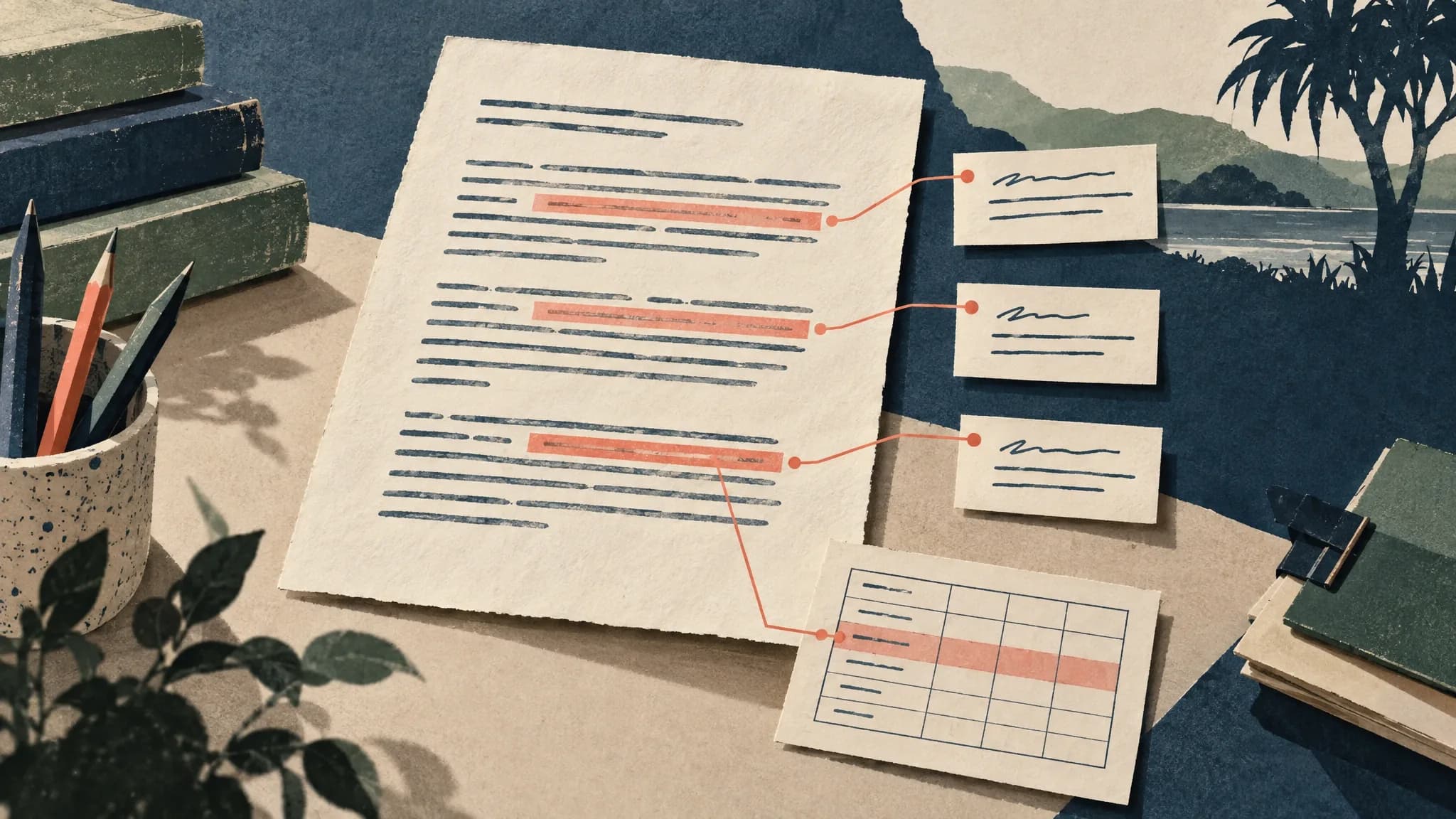
ISMGenius's annotated draft is your own uploaded Word or PDF document, shown on screen with each AI comment pinned to the exact phrase it is about. Work through it by ranking your criteria by the marks still available, fixing structure and evidence before sentences, acting only on comments you can check against your ISMG, and re-running once a round of changes is done.
This guide covers what one comment contains, how it finds its sentence, how the comments relate to the criterion-by-criterion report, and a method for using them. How the marks themselves are reached is in how ISMGenius estimates criterion marks. Comments are placed line by line, but not every line gets one; the limits near the end explain what that means.
What is the annotated draft?
A normal ISMGenius report is organised by criterion: each one gets a result, the evidence behind it and what would lift it. The annotated draft is an extra section of that same report, headed “Annotated draft”. It shows your own document and sets each comment beside the passage it is about.
On a wide screen the comments sit in a column beside the page, level with their passages. On a narrower screen, such as a phone, each comment moves to sit directly under its paragraph. Either way it is your work as one continuous page, rebuilt from the file you uploaded, not a picture of printed pages.
It needs a document to pin comments to: a Word (.docx) or PDF upload, with you signed in. A report made from pasted text has no annotated draft, because pasted text gives a comment nothing to anchor to. The toolbar says whether the source was Word or PDF.
What is inside one comment?
Every comment has the same small set of parts, which is what lets you filter, count and step through them.
| Part | What it is | Rule |
|---|---|---|
| Anchored phrase | A short quotation from your own text, plus the paragraph it sits in and, if the phrase repeats there, which occurrence is meant. | It must appear word for word in that paragraph, or the comment is dropped before you see it. |
| Kind | One of six labels: Issue, Suggestion, Evidence, Question, Structure or Strength. | The list is fixed at six. |
| Criterion tag | The criterion the comment relates to, shown as a button that jumps to that criterion in your report. | Optional. A comment about the writing in general carries no tag. |
| Comment text | The note itself. | 600 characters at most. |
| Byline | AI comments are signed “ISMGenius Feedback”. | A comment a teacher wrote or edited shows the teacher's name instead. |
ISMGenius enforces these limits in its own code and database, not only in the model's instructions: an over-long comment is cut at 600 characters, and a second closing note is stored as an ordinary comment.
What do the six kinds of comment mean?
The kind sets a comment's colour and header, and how to read it: a question and an error are not acted on the same way.
Issue
Something in the work itself is wrong: an error in a calculation or a unit, a misread source, a claim your own data contradicts, or two sections that contradict each other.
What to do: Check it against your own working before you change anything. An Issue states a fact about your draft, so it is the kind most worth verifying.
Suggestion
A specific change that would lift a criterion.
What to do: Read the criterion tag, then test the change against your task sheet before you make it.
Evidence
A claim that needs data, a source, a citation or a figure behind it before it can count.
What to do: Add the support, or cut the claim.
Question
Something you could work out for yourself once asked.
What to do: Answer it in your head first. If your answer is not already on the page, the page needs it. If it is, the passage may be fine.
Structure
How the piece is organised. These are meant to be pinned to a heading or to the first sentence of the section they concern.
What to do: Do these first. A change of order or a missing section decides which sentences are worth polishing.
Strength
Something that works. It is stored as praise and shown to you as a Strength, and a short one appears as a single quiet line.
What to do: Leave it alone. It marks what a later cut or rewrite should not touch.
Each report is meant to carry one closing note. It is a full-width card placed near the end of the page, before your reference list if you have one, and it is meant to name what cost marks: one item per criterion that lost marks, and nothing for a criterion that lost none. ISMGenius's instructions ask for it to be the same synthesis as the Top actions list further down the report, so read it as the summary of the whole page.
ISMGenius's instructions to the model shape the wording: mostly short comments, longer ones only where marks are genuinely at risk, a question where you could work out the answer yourself, and a note of what is missing rather than how to word it. They are instructions, not guarantees. Expect a comment to point at a gap rather than supply the wording, and treat a longer one as a possible sign that marks are at stake, not as proof.
How does a comment know which sentence it is about?
A comment is pinned with a quotation, not a page number or a spot on the screen. The model is given your text as numbered paragraphs alongside the document itself, and for each comment it must copy a short phrase word for word from one paragraph, give that paragraph's number and, if the phrase appears more than once there, say which occurrence it means.
The temperature stayed the same in every trial, so the reaction rate rose because the concentration changed, and this supports the hypothesis.
The comment pinned to the highlight (invented for this example): an Evidence comment, tagged to whichever criterion covers analysis in the ISMG: “Which trials show this? Point to the rows in your table.” Behind the scenes it is stored with the quoted clause, the number of the paragraph it came from, and an occurrence of 1.
Two checks follow. Before anything is saved, ISMGenius searches for the quoted phrase in that paragraph, ignoring extra spaces and line breaks but not capital letters. A comment whose phrase is missing, or that names a paragraph that does not exist, is dropped without affecting the rest of the report. When you open the report, the viewer finds the phrase again and highlights it, searching the whole document for the nearest match if paragraph numbering has shifted.
Three things follow for you.
- The highlights are tied to the document you uploaded. Editing your own file does not move them.
- A comment that cannot be placed still appears, in a list headed “Comments that could not be pinned to a passage”, usually with its quoted phrase so you can find the passage yourself.
- In a Word file a comment can attach to the words around an equation, but not to text inside the equation.
What can you do on the page?
- Select a comment. Click a highlight, or tab to it and press Enter or Space, and its card is emphasised. Click again to deselect it.
- Step through them. Previous and Next arrows appear once there is more than one comment.
- Filter by kind. Chips show each kind that is present, with a count. Choose one and the other highlights dim.
- Filter by criterion. A dropdown, “Every criterion” by default, limits the page to one criterion's comments.
- Jump to the criterion. The tag on a comment takes you to that criterion in the deep dive further down the report.
- Mark as addressed. A tick on each card, counted in the toolbar and saved in your browser for that report only, so it does not follow you to another device.
- Focus. The Focus button gives the document the whole screen. Escape deselects a selected comment first, then leaves Focus.
The student view is read-only apart from that tick. You cannot edit, dismiss or reply to a comment, or add your own. Depending on your plan, the toolbar may also offer your file back with the comments inside it, as Word comments or as an annotated PDF.
How do the comments fit with the criterion report?
The annotated draft shows where
Your own text, with comments pinned to phrases. It answers: where is the problem, and what kind of problem is it? It carries no marks.
The criterion report shows how much
Each criterion's result, the evidence behind it and what it would take to reach the next band. It answers: how many marks are at stake, and where do I stand?
The two come from the same marking pass: the comments are one more field in the single response that also holds the criterion judgements. The marks are not taken from the comments, though. A comment tells you where; only the criterion report tells you how much.
Four links tie them together: the tag on each comment, the criterion filter, the closing note (the same ground as Top actions) and, on a wide screen, the “At a glance” box under the criterion list, which names the “Biggest lift available”. The report itself is explained in understanding your report.
Which comments should you deal with first?
Start with the marks, not the comments. Criteria often carry different marks, so a comment tagged to a heavy criterion works on a bigger slice of your result than the same comment tagged to a light one. Under the 2025 syllabuses, the problem-solving and modelling task in General Mathematics, Mathematical Methods and Specialist Mathematics, for instance, is marked out of 20 and split unevenly.
- Solve7 marks
- Evaluate5 marks
- Formulate4 marks
- Communicate4 marks
That split is for the maths task, covered in the PSMT guide. Your own task's weighting comes from your ISMG, so check yours against the task sheet: how to read an ISMG shows how.
Weighting is half the picture. What counts is how many marks you can still gain: a criterion's total minus its result. The “Biggest lift available” pointer goes by the share of a criterion's marks not yet gained, not the number. Imagine Formulate shows 2 out of 4 and Solve shows 4 out of 7. Formulate has lost half its marks, so the pointer names it, but Solve has lost three marks to Formulate's two. Look at both numbers. If your ISMG reports standards rather than marks, start with the criterion furthest below the top standard.
Then work in a fixed order. The closing note sets the agenda, and inside each criterion the shape of the piece comes before its sentences, because polishing a sentence in a paragraph you later cut is wasted time.
| Order | Comment | Why it sits here |
|---|---|---|
| 1 | Closing-note items | They name what cost marks across the draft, so they set the agenda. |
| 2 | Structure | Reordering or adding a section changes which sentences survive. |
| 3 | Issue | Errors and contradictions change what the draft claims, so fix them before polishing the wording around them. |
| 4 | Evidence | Once the structure is settled you know where the support belongs. |
| 5 | Suggestion | Specific lifts work best on a draft whose shape and claims are stable. |
| 6 | Question | Quick checks, often answered by changes you have already made. |
| 7 | Strength | Nothing to fix. Protect these passages while you revise around them. |
The filter chips list Issues first and Strengths last. That is a display order, not a ranking, so use the order above.
How do you work through the comments, step by step?
Read the report once without editing
Read the closing note and the Top actions list, then check the counts in the toolbar. A report heavy in Structure and Evidence comments needs a different pass from one that is mostly Strengths. Do not change a word yet.
Pick the criterion with the most marks to gain
Use the marks-available check above, then the criterion filter, so the page shows only that criterion's comments.
Work down the order: structure, issues, evidence
Select each comment from its highlight, read the passage and the comment together, and decide what to do with it using the table in the next section.
Turn each comment you act on into one edit
Write the edit as one sentence in your notes first, such as “add the trial numbers after this claim”. If you cannot, the comment is not ready to act on; rewriting the paragraph to be safe is not the answer. For the writing moves that lift a band, see how to move your draft up a mark band.
Tick it off, then move to the next criterion
Use “Mark as addressed” for any comment you have dealt with, including one you chose not to act on. The tick is your own bookkeeping. Nothing checks it.
Re-run when a round is finished
Submit the revised draft after a criterion or two, not after every edit. What to expect is covered below.
Keep a short list for your teacher
Anything you could not turn into an edit, or that clashed with your task sheet, goes on it.
Which comments should you act on, and which can you ignore?
| If the comment… | Then |
|---|---|
| names a gap against a criterion where you still have marks to gain | Act on it. This is the work that moves your result. |
| states something you can check in your own text (a number, a source, a contradiction) | Check it yourself first. Fix it if it is right, and leave the draft alone if it is not. |
| is tagged to a criterion already at its top band or standard | Park it. Read it for what to keep. |
| would push you past the word or page limit | Park it until you have checked the limit, which is covered in the QCAA word-count rules. |
| clashes with your task sheet, your ISMG or what your teacher told you | Follow the task sheet and your teacher, and put the comment on your list. |
| cannot become one concrete edit after two careful reads | Leave it for now and put it on your list. |
What happens when you re-run after changes?
The “Submit revised draft” button at the end of the report starts a new upload. To get an annotated draft again, upload it as Word or PDF, not pasted text. How many revised drafts you can submit depends on your plan.
- You get a new set of comments. Each report keeps its own document and its own comments, and the older report stays as it was.
- Your ticks do not carry over. They are saved per report, so the new report starts at zero.
- The new draft is marked from scratch. It is assessed on its own, then compared with the earlier report, crediting only improvements the new text earns and flagging anything that got worse. A “Since your last draft” section lists what is resolved, still open and new.
Treat a re-run as a fresh judgement. A comment that disappears is not proof the problem is fixed, and a new one is not proof you broke something. Re-read the passage against the criterion yourself.
What should you take to your teacher?
Your teacher knows how your school applies the ISMG to this task. Bring the list from your working sequence, and ask about meaning rather than for the fix.
- Comments you could not turn into an edit. Ask what the criterion is looking for at that point.
- Comments that clash with the task sheet or with each other. Ask which one your task follows.
- A criterion where you disagree with the report. Show the passage and the descriptor, and ask how it reads to them.
- A structural question. Ask whether the order of your argument works, not what to write.
How much feedback a teacher may give on a draft depends on the rules where you study and on your school's policy: see what your teacher may do with your draft, by state. If you are unsure how your school treats AI tools, ask your teacher or check the task sheet.
What the annotated draft cannot do
- It is selective. Comments are pinned to chosen short phrases, and the model's instructions say not to force a comment onto a passage that does not need one. A passage with no comment has not been approved.
- Comments may stop partway through a very long document. The text the model is given to quote from has a length limit, and ISMGenius may change it. In a long document the comments may not reach the final sections, so check those yourself.
- Some content cannot be quoted. The quotable text leaves out equation objects and figures. Charts pasted into Word from Excel are redrawn only as scatter, line, bar and area charts; other types, and very large charts, appear as a labelled placeholder.
- It is formative. The comments guide your revision. They are not your result, and your school and teachers decide marks.