A full class set of drafts tends to arrive in one week: thirty PDFs, one rubric, and a fortnight before the marks are due. Marking is the heaviest recurring part of the Australian teaching week. OECD figures put teachers here at around 46 hours a week, among the longest in the developed world, with close to 18 of those hours going on planning and marking, and about half of teachers naming marking as a significant source of stress. The ISMGenius Teacher Toolkit does not take the marking judgement off your hands. It speeds up the draft-feedback pass so that judgement is the part you spend your time on.
How a class set moves through the toolkit
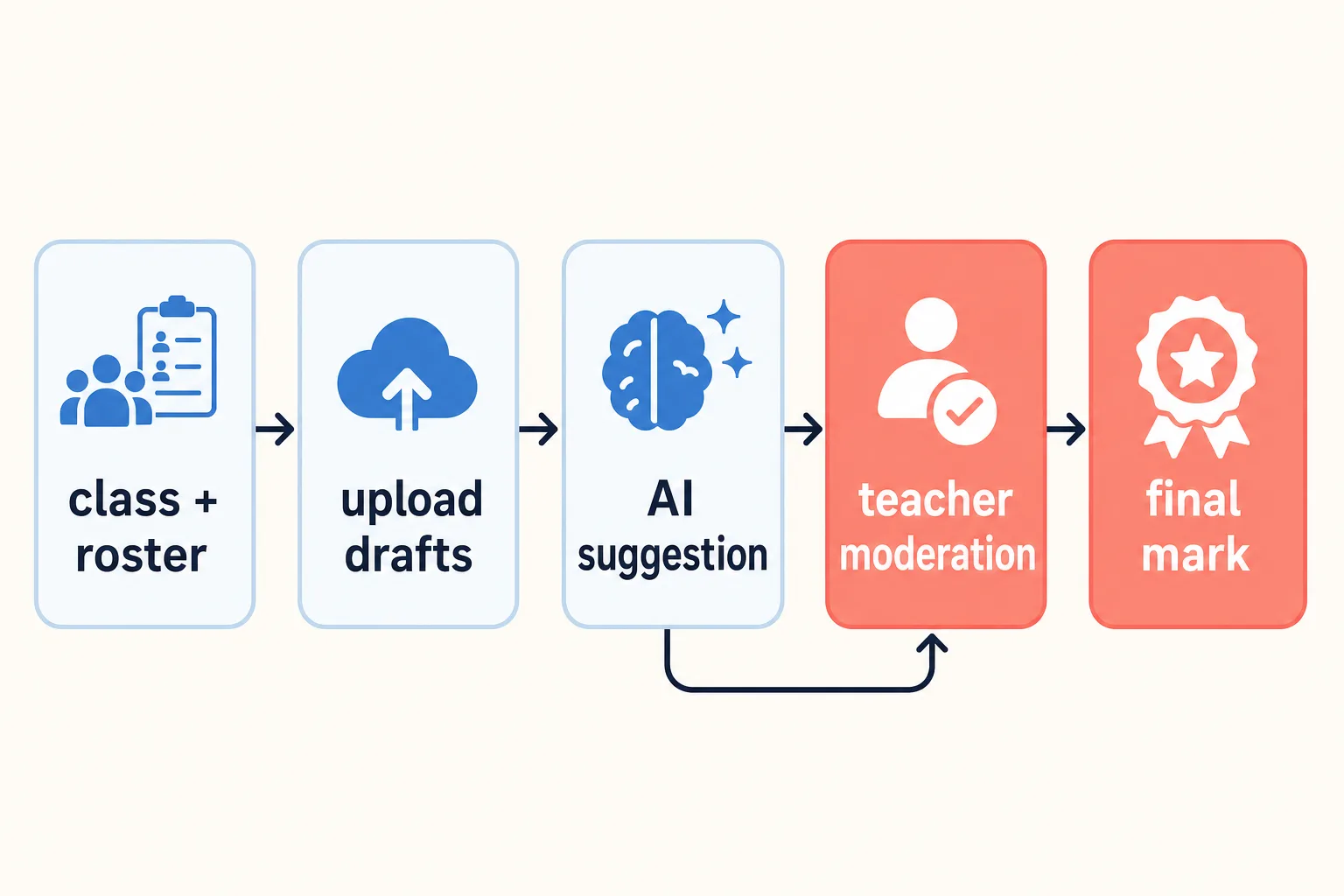
You never set up a student login, because there are none. A class is a private container in your account, and a student is a label you type rather than a login you manage. The path from a folder of PDFs to a set of confirmed marks runs in a fixed order.
Create a private class
Name it however your timetable does, such as 12CHE2. Nothing in it is visible to a student.
Paste your roster
Paste your class list, one name per line, with a student ID after a comma if you use one. These are labels for your own reference.
Set up the assignment and upload the rubric once
Create the task and attach its rubric or ISMG. It is uploaded a single time and reused for every student in that task.
Batch-upload the drafts
Upload the class's PDFs together, up to 200 in one go. The tool matches each file to a roster label by its filename and holds anything it cannot place for you to assign by hand.
Generate feedback for the class
Start one run and it works through every uploaded draft against the rubric, producing rubric-aligned feedback criterion by criterion.
Moderate each student, then export
Open each student to confirm the marks, then export the class as a gradebook. The moderation step is where the real work sits.
The screen where you confirm every mark
Open a student and the moderation workspace puts three columns in front of you: the AI best-fit suggestion, your judgement, and the difference between the two, laid out criterion by criterion. You type your own mark into each criterion. The maximum on each is set by the rubric and cannot be edited, and the save bar will not let you finalise a student until every criterion carries a mark you entered.
The comment to the student arrives pre-filled with an AI draft, and from there it is yours. You edit it, restore the original if you change your mind, and copy it out when you are ready. The tool sends nothing to anyone. It produces a comment and a set of marks for you, and passing them on happens through whatever channel your class already uses.
Pro Tip: Open the difference column before you touch a mark. Where the AI suggestion and your first instinct diverge is exactly where the criterion is worth a slow second read, and the moderation note is there to record why you landed where you did.
The feedback reaches you first
Every mark here is a suggestion. The AI produces a best-fit standard for each criterion, and you decide what the mark is. The interface states this in its own words: the marks are best-fit suggestions for your professional judgement rather than QCAA outcomes. The integrity readings follow the same principle, offered as indicators for a closer human look rather than as proof of anything.
That ordering matters for compliance, because the feedback lands with you before it reaches a student.
What the whole-class view shows
Once a class has feedback, the class summary turns the set into a few plain figures: how many drafts are in, the average outcome where the criteria carry marks, and the spread of bands on each criterion. Alongside it sits a private list the interface calls the students to check in with, drawn from where each draft sits relative to the class rather than from a fixed cut-off. The interface labels it as class-relative evidence for you, and it is careful not to present it as a verdict on any student.
The written cohort summary beside those figures is built from de-identified feedback. Student names are never sent to it, and it is instructed to describe the class as a whole and never to single out an individual. If that step is unavailable, the figures still render on their own, so the numbers do not depend on it.
The integrity signals live in their own view. Each submission carries an AI-likelihood reading and a source-matching reading, with sentence-level detail where the scan returns it. The tab states the limit plainly: these scores are indicators, never proof of misconduct, and they are there to tell you which drafts deserve a closer human read.
Two things travel with every score, because a number on its own is not enough to take into a conversation with a student. The first is when the scan ran, so a score left over from an earlier draft is obvious rather than misleading. The second is how much of the document it actually covered: the detector has an input limit, and a long research task can exceed it, so the view says what proportion was read. Where a reading does prompt a conversation, you can open a case against that student and record what you checked, what the student said, and what happens next, so the decision has a written trail behind it.
Draft feedback, final marks, and the gradebook
Whole-class generation covers the draft track, which is formative. The feedback comes with next steps a student could act on before the finished piece is due. Final, summative feedback is generated one student at a time, and it assesses the completed work without prescribing revisions. The two tracks stay separate on every student's row, so a draft mark is never mistaken for a final one.
The gradebook export is a CSV with one row per student. Your confirmed marks sit in their own columns and the AI suggestions sit in others, so a spreadsheet never blurs the two. It reflects the latest saved results across both tracks, and it includes the integrity readings for any submission you scanned. The toolkit reads PDFs, and rosters are typed or pasted rather than synced from a school system.
On the submissions screen each track gets its own line under the student, so a draft and a final sit one above the other with their own file, mark, word count and integrity readings. A confirmed teacher mark is set in bold and an unconfirmed AI suggestion in muted italics, which means you can scan a class and see at a glance how much of it you have actually signed off. There is also a hand-back view that prints one page per student, so the class can be printed in a single pass and given out on paper or as a PDF.
Sharing a class with your faculty
Internal moderation is rarely a solo activity, so a class can be shared. A co-teacher added to a class can mark and moderate alongside you; a view-only colleague can see the class without changing anything, which suits a head of department checking consistency across a cohort. Only the teacher who owns the class can rename it, delete it, or manage who else is in it.
Everything a class contains stays attributed to the owner regardless of who did the work, so a colleague's uploads land in the same place as yours and the class survives that colleague later being removed. This is also what makes cover arrangements workable: if someone takes leave mid-assessment, whoever picks the class up has the drafts, the suggestions and the moderation already in front of them.
Key takeaways
The toolkit speeds up the draft-feedback pass while the marking judgement, the delivery, and the compliance decisions stay with you.
| Point | Details |
|---|---|
| No student accounts | A class is a private container and a student is a roster label you type, and you upload their drafts as PDFs. |
| You confirm every mark | The AI offers a best-fit suggestion per criterion, and you cannot finalise a student until you have marked each one. |
| Delivery stays with you | The drafted student comment is yours to edit, and the tool sends nothing to anyone on your behalf. |
| Feedback reaches you first | Because the suggestion comes to you rather than the student, the workflow sits inside your school's draft-feedback policy. |
| Indicators, not proof | Integrity readings and best-fit marks are signals for your judgement, never proof or an official QCAA result. |
Why I kept the teacher in charge
The quickest tool to build is the one that returns a number and lets everyone treat it as the answer. I understand the appeal. When the marking pile is high, a single confident figure per student is exactly what you want to believe.
Building the moderation step the slow way was a deliberate choice. Making you enter a mark on every criterion, keeping your marks in different columns from the model's, refusing to send a word to a student without you: that friction is what makes a tool safe to use in a QCAA-assessed course. A best-fit suggestion is a place to start a judgement, and it cannot make the judgement for you.
So the time the toolkit gives back comes from the mechanical part of the pass, the first read of a draft, the descriptor matching, the drafting of a comment you then shape. The decision it is built around stays with you, and it is meant to stay that way.
The ISMGenius Teacher Toolkit
The Teacher Toolkit is the educator side of ISMGenius: private classes, batch draft feedback against your own rubric, a moderation workspace that puts the suggestion beside your judgement, a de-identified cohort summary, and a gradebook export. Access is by a short application with your school email rather than a purchase, and an administrator grants the educator plan once the application is approved.
You can read more about ISMGenius for educators, work through the teacher documentation, and see how the underlying ISMG marking works. The workload figures come from the Australian Teacher Workforce Data and OECD reporting, and the QCAA sets out its senior assessment and academic-integrity requirements at qcaa.qld.edu.au.